
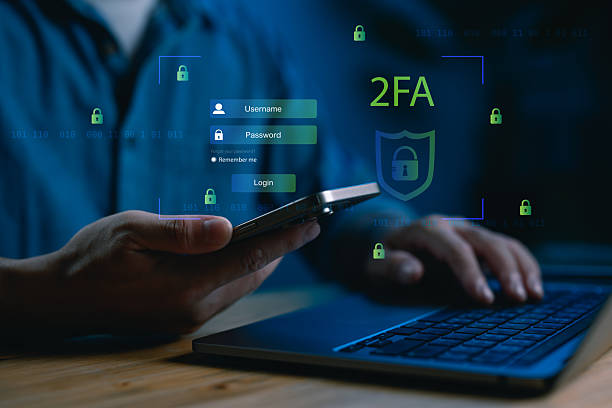
Imagine waking up to find your WhattsApp, email or bank app already logged in. On someone Phone. No warning, no chance to stop it. All it took was your password, which hackers steal every day through leaked databases phishing links and fake login pages.
Wondering how to Enable Two-Factor Authentification on your accounts? You’re in the right place. If your account only relies on a password you’re one data breach away from losing everything: your chats, your photos, your money, your identity
The good news? There’s a fix that blocks almost all of these attacks. Two-Factor Authentication (2FA).It adds a lock to your accounts so even if someone gets your password they still can’t get in.In this guide you’ll learn how to enable 2FA on your most important accounts. Step by step.
Table of Contents
What is Two-Factor Authentification?
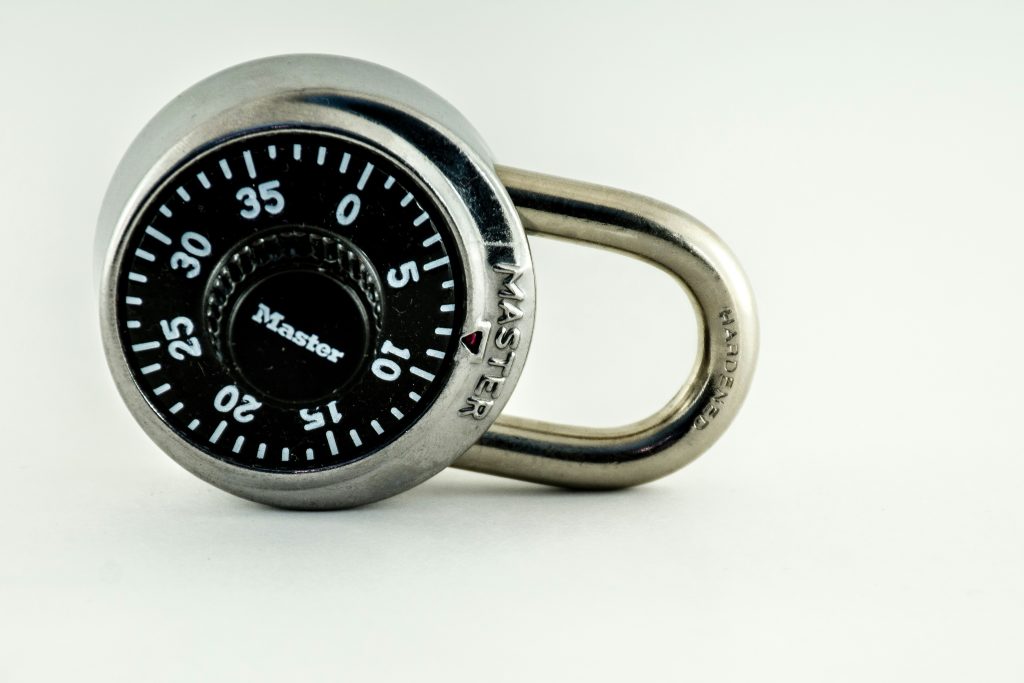
Two-Factor Authentication or 2FA adds a layer of security to your accounts. Of relying on just a password you also need a second piece of proof that its really you logging in.Think of it like your door. A password is the key. 2FA is the deadbolt. Even if someone copies your key they still can’t get through the lock.
2FA methods use one of these:
● Something you know. Your password
● Something you have. Your phone, an authenticator app or a security key.
● Something you are. Your fingerprint or face
Here’s why that matters: even if a hacker steals your password through a data leak or phishing scam they still won’t be able to log in without that factor. That’s exactly how to Enable Two-Factor Authentification works — it closes the gap that a stolen password leaves open.
Why You Can’t Skip This Anymore:
Passwords alone arenn’t enough anymore. Heres the uncomfortable truth. Billions of passwords are leaked online every year through data breaches. Many people reuse the password across multiple apps, which means one leaked account can open the door to all your other accounts too.
2FA blocks over 99% of automated attacks according to Check out these Googles security research. That’s not an improvement. That’s the difference between staying safe and losing everything.
If you’ve ever gotten a “new login detected” email you didn’t recognize that’s your warning sign. This is the kind of attack 2FA stops in its tracks. Not sure if your phone has already been compromised? Check out these 15 signs your phone is hacked
Types of 2FA. Which One Should You Use?
Not all 2FA methods are equally secure. Here’s a quick breakdown:
| Method | How it is works | Security level |
| SMS code | A code is sent to you via text messege | Basic |
| Authenticator App | A code is generated in the app | Strong |
| Push Notification | You approve the login via a tap on your phone | Strong |
| Security Key | You use a phsical USB or NFC key | Strongest |
Our recommendation: Skip SMS if possible. It’s better than nothing. Sim-swap attacks make it the weakest option. An authenticator app is the spot between security and convenience for most people.
How to Enable Two-Factor Authentification on WhatsApp:
Lets start with one of the used apps on your phone. For official guidance directly from WhatsApp, see their Check out these Two-step verification help center page
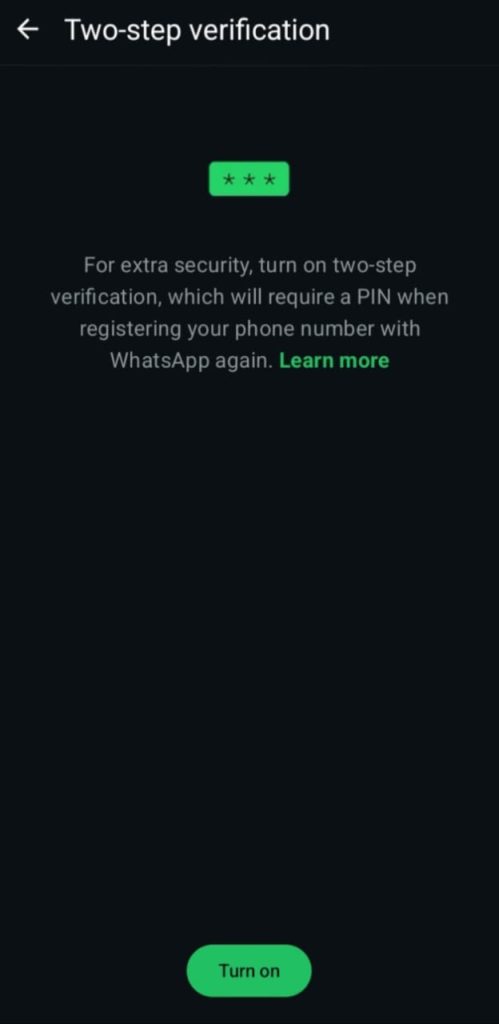
1. Open WhatsApp: Go to Setting.
2. Tap Account: Two-Step Verification
3. Tap Enable:Turn on Two-Step Verification.
4. Create a 6-digit PIN:you’ll remember.
5. Add a recovery email: ( highly recommended. Without it you could get permanently locked out if you forget your PIN)
That’s it. Now even if someone gets access to your SIM card they can’t take over your WhatsApp without that PIN. Want to lock your WhatsApp down even further? Check out these How to secure your whatsApp account from hacker
How to Enable 2FA on Facebook:
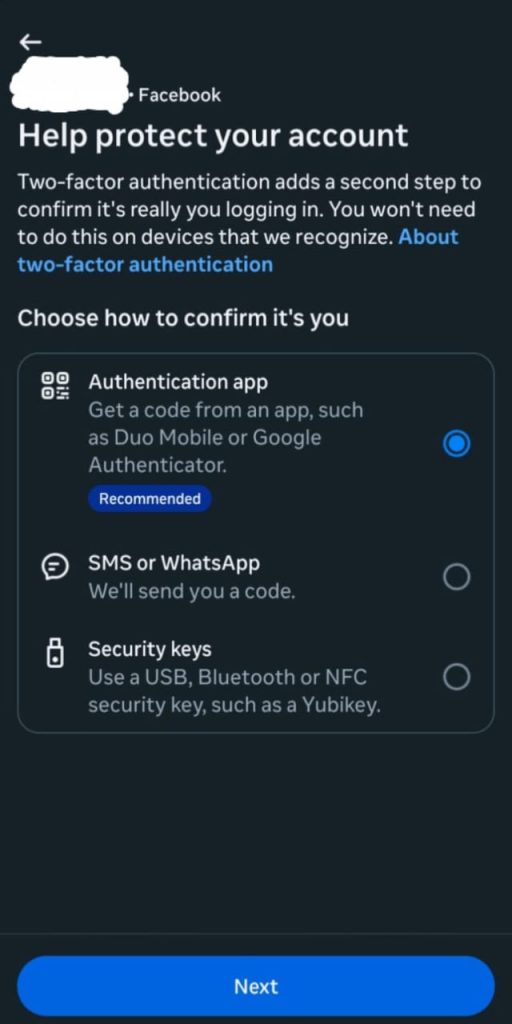
1. Go to Settings & Privacy → Settings
2. Tap Security and login
3. Select Two-Factor Authentication
4. Choose your method(Authentication App is recommended over SMS)
5. Follow the on-screen steps to link your authenticator app or phone number
Once its on Facebook will ask for a code any time someone tries logging in from a device.
How to Enable 2FA on Instagram:
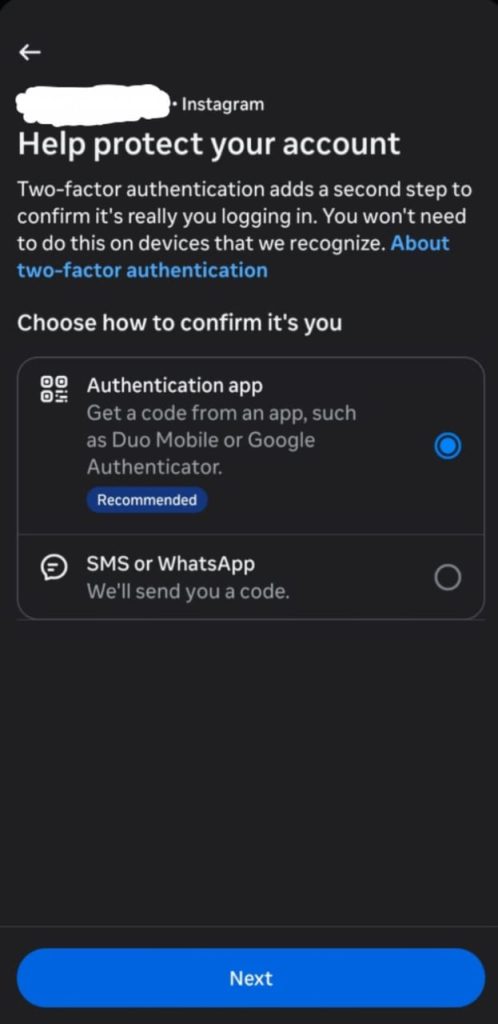
1.Open Instagram→ Go to your Profile
2. Tap the menu icon → Settings and Privacy
3. Tap Accounts Center → Security
4. Select Two-Factor Authentication
5. Choose your account and pick Authentication App or Text Message
Once enabled Instagram will send you a login alert every time someone tries to access your account from a device. So you’ll always know if someones trying to get in.
How to Enable 2FA on Gmail / Google Account:
Your email is often the master key to everything password resets for almost every other account go through it. Here’s how to lock it down:
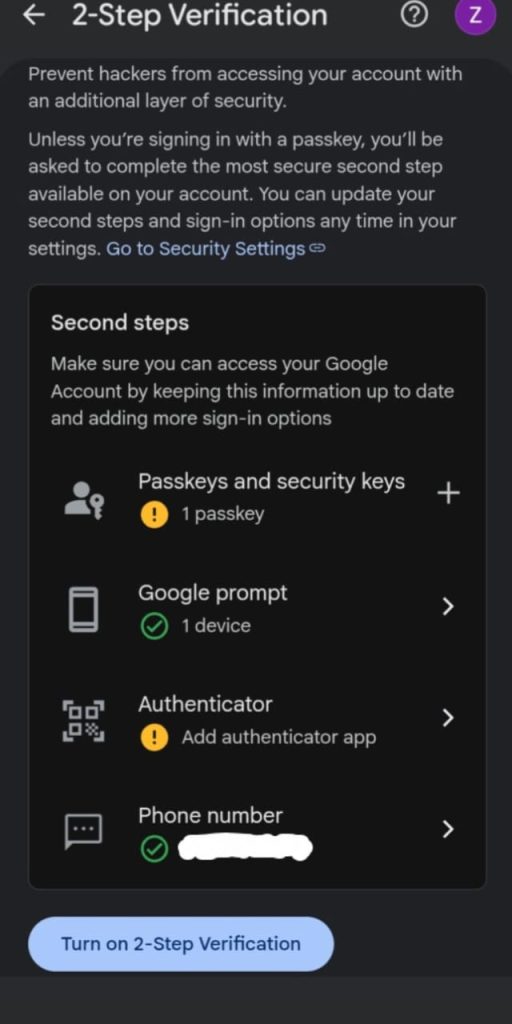
1. Go to myaccount.google.com
2. Tap Security
3. Under “How you sign in to Google ” select 2-Step Verification
4. Tap Get. Follow the prompts
5. Choose your method: Google Prompt (recommended) authenticator app or backup codes
Pro tip: Download and save your backup codes safe (not just on your phone). If you ever lose your device these codes are your lifeline back into your account. Follow along with Google’s own check out these Turn on 2-step verification guide for the most up-to-date steps.
How to Enable 2FA on Banking Apps:
Banking apps usually have 2FA built in by default. Its worth double-checking:
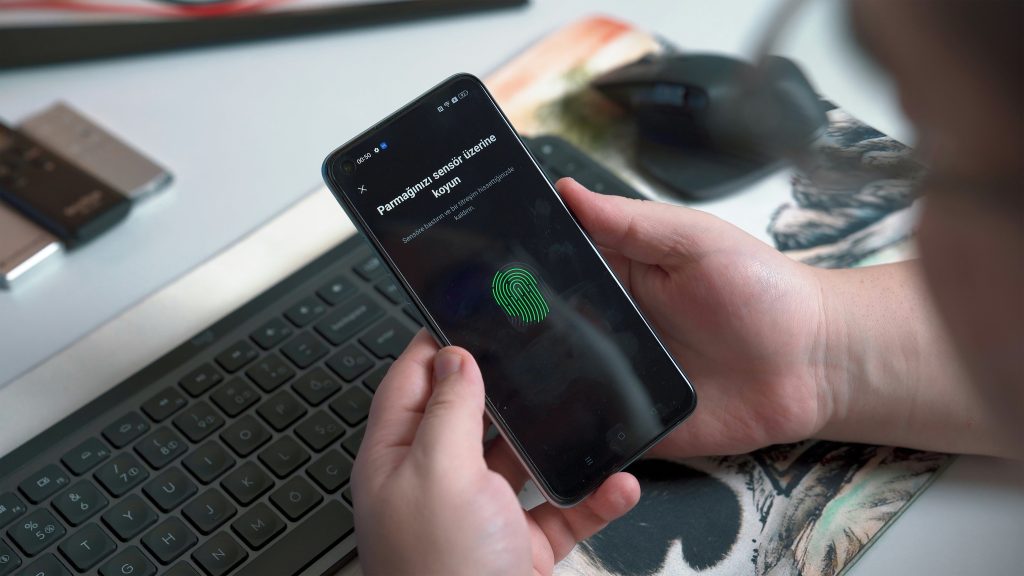
1.Open your banks app. Go to Security Settings
2.Look for Two-Factor Authentication, Login Verification or OTP Settings
3.Enable App-based OTP if available ( secure than SMS)
4.If your bank supports login turn that on too as an extra layer
If your bank doesn’t offer 2FA at all that’s a serious red flag. Consider raising it with their support team or reconsidering where you keep your money.
Best Authenticator Apps to Use
| App | Best For | Free |
| Google Authenticator | Simplicity, compatibility | yes |
| Microsoft Authenticator | Push notifications,cloud backup | yes |
| Authy | Device sync | yes |
| 2FAS | Open-source,privacy-focused | yes |
Any of these will work well. The important thing is picking one and actually using it rather than skipping 2FA altogether because you’re unsure which app to choose.
2FA Mistakes to Avoid
Here’s where a lot of people go wrong even after enabling 2FA:
● Not saving backup codes. If you lose your phone you lose access too
● Using SMS only. SIM-swap attacks can bypass this method entirely
● Reusing the same weak password. 2FA helps, but a strong unique password is still your first line of defense
● Ignoring login alerts. If you get a notification you don’t recognize act immediately: change your password and review active sessions
Avoiding these mistakes is just as important as enabling 2FA in the first place. A second lock doesn’t help much if you leave the key under the mat. For a complete step-by-step approach to keeping your phone safe overall, read: Check out these How to protect your phone from Hacker
Conclusion:
Your phone holds everything. Your chats, your photos, your bank details and your entire digital identity. A password alone simply isn’t enough to protect that. Two-Factor Authentication is one of the fastest security upgrades you can make and it blocks the vast majority of hacking attempts before they even start.
You don’t need any expertise to set it up. Just five minutes and the steps we covered above. Start with your email since its the key, to resetting everything then move on to WhatsApp, Instagram, Facebook and your banking apps.Don’t wait for an account to remind you why this matters. Enable 2FA today. Give hackers one less way in.
